(This feature is only available in NVivo installations with coding enhancements enabled.)
Automatically detect and code sentiment
NOTE With NVivo 15.4.0, the Autocode Sentiment feature leverages generative AI to deliver faster and improved sentiment analysis.
Quickly identify expressions of sentiment in your content using the AI based sentiment analysis to determine if the overall tone is positive or negative.
The process
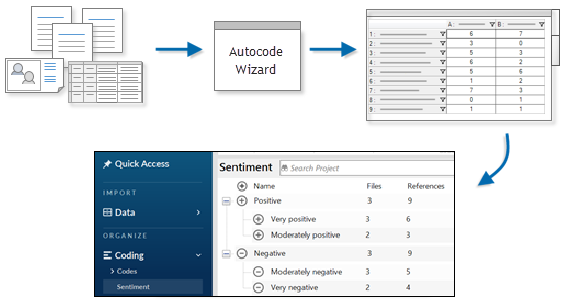
Select multiple files, codes or cases and use the Autocode Wizard to produce results. A coding matrix is created, and content is coded to sentiment codes.
Limitations of sentiment autocoding
NVivo searches for expressions of sentiment in the content.
It is important to understand that this tool does not classify content according to sentiment. It does not take each piece of content and rate it on a Likert sentiment scale. It looks at the sentiment of words in isolation—the context is not taken into account.
Steps to automatically code sentiment
- In List View, select the codes, cases or text files you want to autocode. Text files include documents, PDFs, surveys and transcripts—they do not have to be of the same type but they should be the same language.
- On the Home tab, in the Coding group, click Autocode then follow the steps on the Wizard.
| Wizard step | Description |
|---|---|
|
Choose how you would like to autocode |
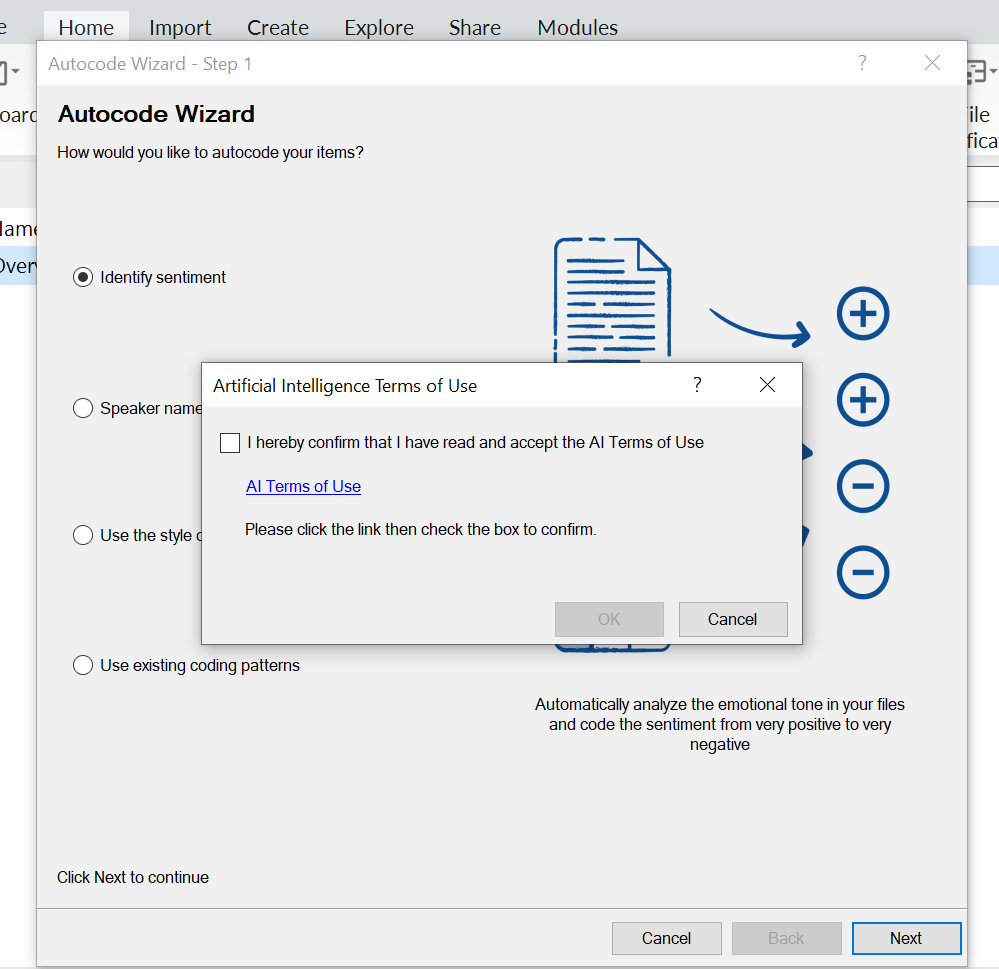
Click Identify sentiment. Make sure your project text content language is set to the language of the sources you are analyzing. If the Artificial Intelligence Terms of Use dialog is displayed, follow the steps below:
|
|
Identifying sentiment |
NVivo analyzes your files for sentiment. |
|
Select how your text passages will be coded |
Choose how finely NVivo should code text passages:
The results are displayed as a coding matrix in Detail View—and saved in the Coding Matrices folder. The coding references are added to the codes in the Sentiment folder in the Coding group. Additionally, a hierarchy chart (Tree map) is displayed showing the sentiment coding patterns. |
Work with the results of sentiment coding
When you autocode sentiment, the results are displayed as a coding matrix in Detail View and coding references are stored in the Sentiment codes. You can view the saved coding matrix later if you want a record of the coding performed by the Wizard at a particular date and time. This coding matrix is a static record that is not updated if you subsequently uncode some of the content.
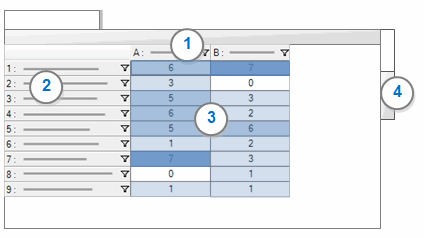
1Columns display the names of the codes that have been coded by the Wizard.
2Rows display the files that have been coded by the Wizard.
3 Cells display the number of coding references that were created for a file (row) at a code (column). You can change the display, for example transpose the columns and rows—click Transpose in the View group, on the Matrix tab.
4 Click the Chart tab to see a visual representation of the autocoding results.
NOTE The number of coding references for a file displayed in the Codes column in List View includes the coding matrix.
Additionally, a hierarchy chart (Tree Map) is also displayed showing the patterns in the sentiment coding.
How are sentiment codes different?
Sentiment codes behave differently to other codes in NVivo.
There are two parent sentiment codes: Positive and Negative. Each parent code has two child codes: Very and Moderately. Coding in the child codes aggregates to the parent by default.
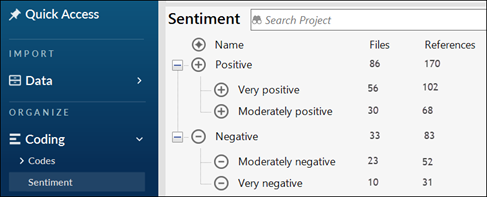
Sentiment codes are created and used by NVivo. You cannot create, rename, move or merge sentiment codes.
You can code and uncode in sentiment codes, include them in a framework matrix and review the references just like any other code.
By default, positive sentiment codes are assigned the color green, and negative sentiment codes are assigned the color red. You can change these at any time.
Next steps after sentiment coding
Review the results to confirm that you are satisfied with the autocoding before performing other actions in your project—so that you can adjust the coding if you need to.
- Review what has been coded. Double click a cell in the matrix to see the content that was coded to the intersection of the file and code. Is the content relevant to that code? Take a look at other cells in the matrix.
- Decide whether you are satisfied with the results—do you want to keep the coding or undo the entire autocoding operation?
- If you are mostly satisfied with the results, but need to fine-tune some of the autocoding, you may want to uncode some of the references. Alternatively, you may want to change coding from one sentiment to another. The coding reference is still displayed in Detail View for the cell, even if you have uncoded or reassigned it.
- If you are not satisfied with the overall results, you may want to 'undo' the autocoding completely.
- Open each child sentiment code and change the sentiment coding if required.
- Run a coding query to identify content that is coded to both a positive and negative code—for example, choose to find all content coded to the sentiment codes Very negative and Very positive. Review the results of the query. If you want to uncode content at one of the sentiment codes, the best approach is to remove coding using coding stripes.
Why am I getting unexpected results from sentiment coding?
Autocoding sentiment uses generative AI to scan your files to identify sentiment.
- Understand the structure of your files—look for clear sentence and paragraph structure. If you choose to Code sentences, full stops are used to designate the end of sentences. Make sure that sentences in your files end with a full stop, including bulleted lists and text in table cells within a document. Any full stops used to designate an abbreviation will be interpreted as the end of a sentence.
- Make sure each file is in one language, and that you process files of the same language together.
- Minimize the presence of advertising or repeated content in your files. If you are working with web pages, capture only the main content on the page before importing into your project.
- Be aware that a great deal of content won't be coded to all. It may be deemed not to have any sentiment, or the sentiment may fall within the neutral range on the sentiment scale.
How can I identify autocoded sentiment?
Autocoded sentiment references that were created by the Wizard are associated with the user profile 'NVivo AI' with the initials 'AI'.
If you have performed multiple sentiment autocoding operations, you will not be able to distinguish which references were created by a particular coding operation. To see the references from a particular operation, you can view the specific coding matrix in the Coding Matrices folder.
You can run a matrix coding query to display the coding references currently associated with the user 'NVivo AI'.