NVivo 15 Upgrade & Transition Guide (Versions 12, 13, & 14)
Welcome to NVivo 15
NVivo 15 introduces new enhancements designed to make your research workflow smoother and more efficient. Upgrading is quick and simple. Just follow the steps below to get up and running in minutes, with no manual migration required.
Before you Begin
Ensure that:
-
You have a MyLumivero account. It is an online account system to manage your licenses or subscriptions.
-
To learn more about MyLumivero user profiles and customer accounts, click here.
-
-
You have the email addresses of the users who need NVivo licenses.
-
Your users’ devices meet the system requirements.
-
For organization licenses: Make sure you have the correct number of license keys for your team.
Multi-User Licenses
NOTE If you have an IT department that can run scripts to install and activate NVivo on your users’ computers, refer to Scripted Installation.
-
Distribution/Assignment of licenses or subscriptions: If you purchased multiple NVivo licenses or subscriptions in a single transaction, you are responsible for their distribution. As an admin, this is done through your MyLumivero account.
-
Log into the MyLumivero portal.
-
From the left navigation, select My Licenses.
-
Select the required license under the Manage Licenses section and assign licenses to your users.
NOTE Assigned users will receive an email informing them that they have been granted access to NVivo and will be prompted to create a MyLumivero profile if they do not already have one.
-
-
Download: Users can download NVivo 15 from their confirmation email or they can download the latest version of NVivo from MyLumivero Portal.
-
Install: NVivo 15 installs as a separate application and does not replace older versions. To install, double-click the NVivo 15 installer file and follow the prompts.
-
Activate: Once the installation is complete, users can launch NVivo 15 and follow the below steps:
-
In the Activate NVivo dialog box, click Log into myNVivo and enter the MyLumivero profile login details.
-
Click Activate.
-
Organization Licenses
There are two types of organization licenses:
-
Per Seat License – Each license requires a unique login.
-
Concurrent License – Multiple people may be licensed, but only the purchased number of concurrent logins can be active at one time.
As an administrator, you can choose from the following options:
-
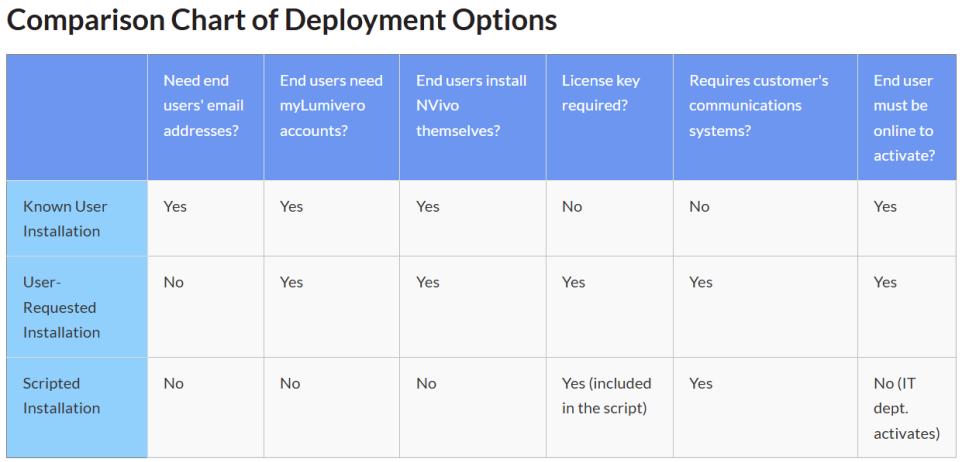
Known User Installation: This option is ideal if you know your end users' email addresses. Grant them access to NVivo from the organization's MyLumivero account (you can do this individually or in bulk files). For more information refer to Known User Installation (NVivo 15 Windows).
-
User-Requested Installation: This option suits organizations where users can request access to the NVivo license. You distribute the license key and a link to register the key within the MyLumivero portal. End users log into MyLumivero and enter the key. They receive an email to download and install NVivo, and log into MyLumivero to activate it. For more information refer to User-Requested Installation (NVivo 15 Windows).
-
Scripted Installation: Under this option your IT department runs scripts to install and activate NVivo on computers throughout the organization. End users have no part in the installation and activation process—after setup they simply log into computers on which NVivo has been installed and use it—they do not need MyLumivero profiles. For more information refer to Scripted Installation (NVivo 15 Windows).
Upgrading from NVivo 12, 13, and 14 to NVivo 15
Users can easily upgrade NVivo 12, 13, and 14 projects by selecting the Open Other Project option on the NVivo 15 welcome screen and opening their project file.
For the best experience, users working on shared projects should ensure that all team members have upgraded to the same version of NVivo for seamless collaboration.
Version-specific notes:
NVivo 14 → 15
-
Project opens directly with no upgrade prompts.
-
Cloud projects are automatically available in NVivo 15 and can be accessed using the Cloud Projects option on the welcome screen.
NVivo 12 & 13 → 15
-
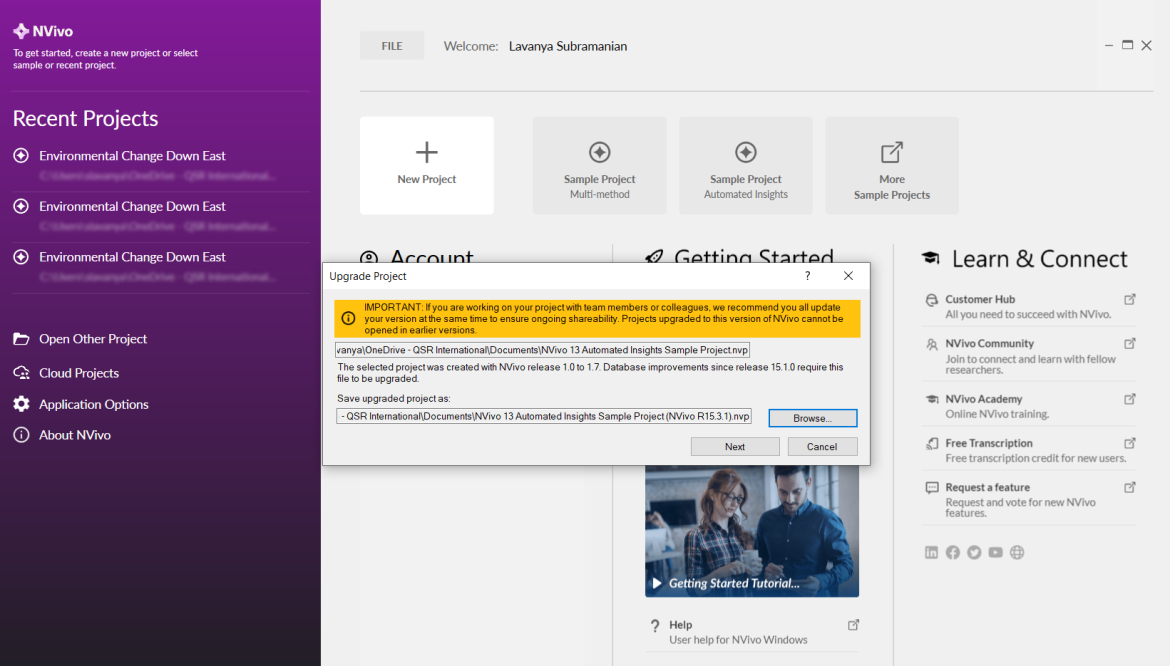
Users will see a project upgrade prompt the first time the project is opened.
-
Proceeding with the upgrade prompts converts the project for use in NVivo 15.
Additional notes:
-
No action is required from administrators to upgrade projects.
-
NVivo projects remain stored wherever users originally saved them; NVivo 15 does not move or change the file location.
-
When a user first launches NVivo 15, their projects will not appear in Recent Projects until they open them in this version.
-
NVivo 14 cloud projects are automatically available in NVivo 15 and can be accessed via Cloud Projects on the welcome screen.
FAQs
You can refer to this MyLumivero page for more information about MyLumivero profile.
When you assign licenses via MyLumivero portal, the product license is linked to MyLumivero profiles for each end user.
No. Uninstalling older versions (NVivo 12, 13, or 14) is optional. If a user chooses to uninstall a previous version, their license will be automatically deactivated.