AI Assistant: Paper Search
Using the AI Assistant: Paper Search option, you can simply describe a research topic, and the AI Assistant fetches a ranked shortlist of relevant academic papers, each with a short explanation of why it matches. You can preview a paper's PDF or abstract, then import the papers you want directly into your NVivo project as files.
NOTE This feature requires the AI Assistant entitlement and is unavailable when you are logged out, consistent with the other AI Assistant features.
-
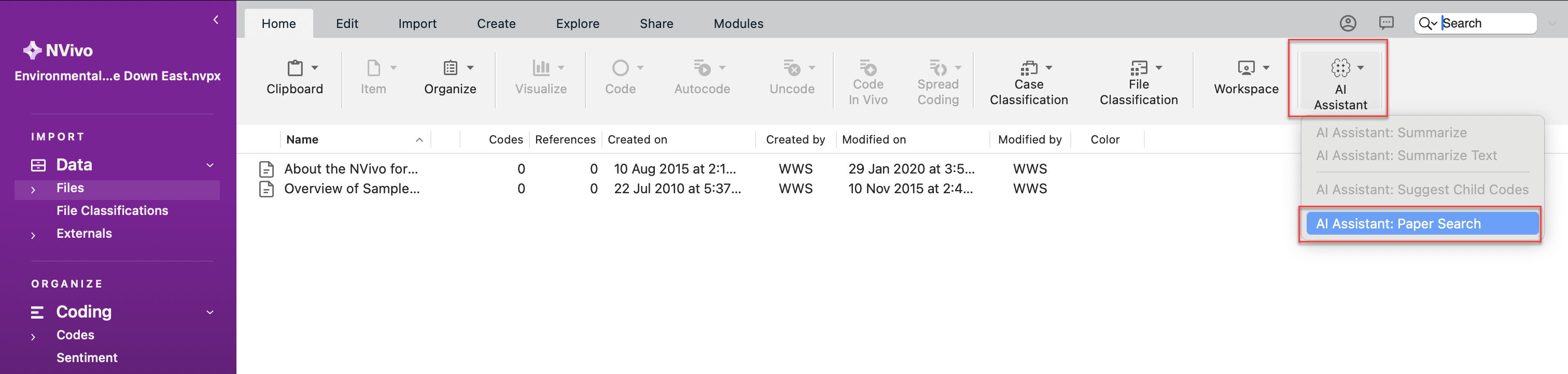
From the top ribbon, select Home -> AI Assistant -> AI Assistant: Paper Search.
-
If the Artificial Intelligence Terms of Use dialog is displayed, follow the steps below:
-
Click the AI Terms of Use link in the dialog.
Lumivero Artificial Intelligence Terms of Use page is displayed for you to read.
-
Return to NVivo, check the confirmation check box.
-
Click OK.
-
-
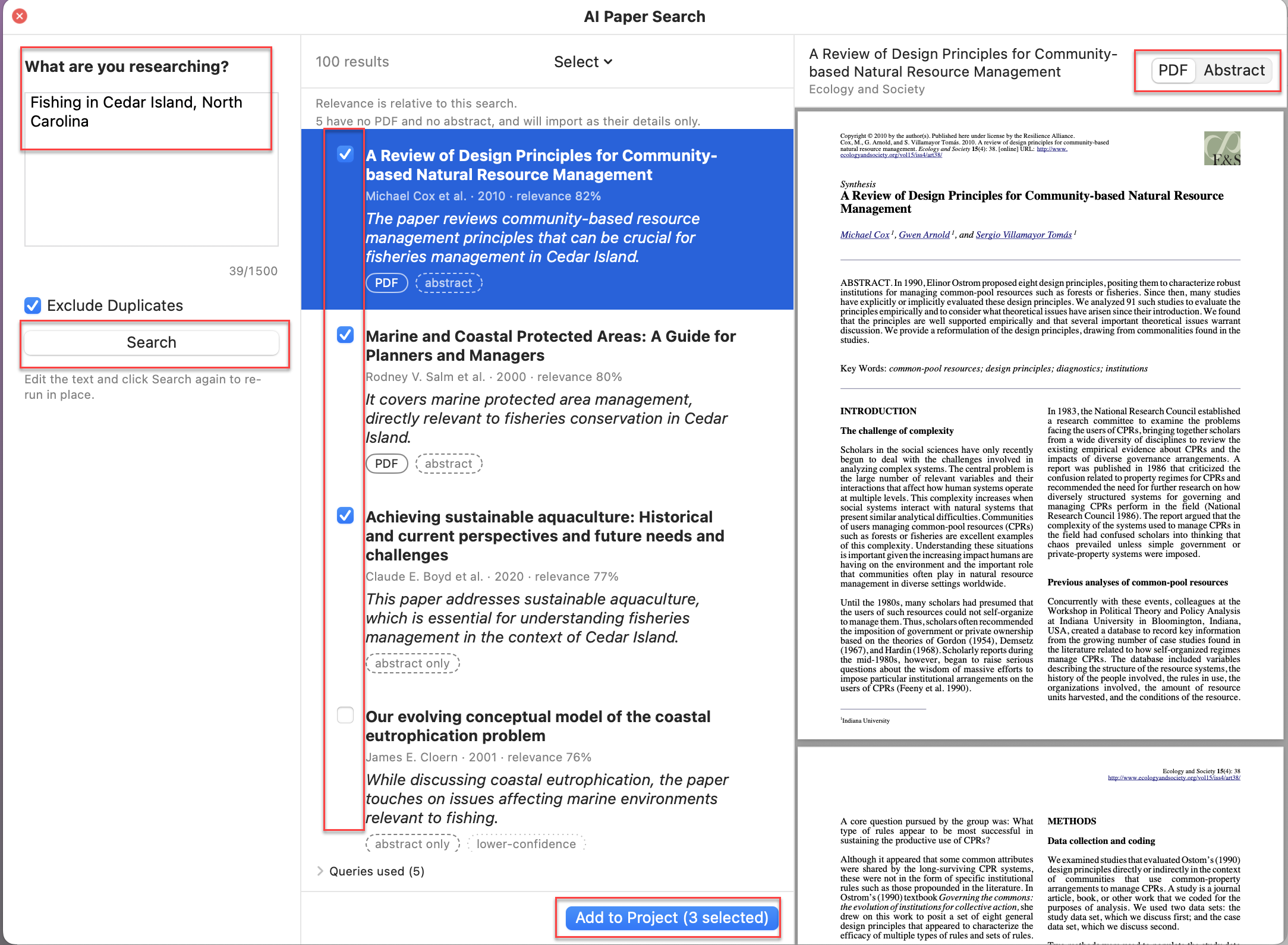
In the AI Paper Search dialog, in the query box under What are you researching? enter a description of your topic or question that you want to search.
-
(Optional) Leave Exclude Duplicates checked to keep papers you have already imported out of the results, or uncheck it to search without that filter.
-
Click Search.
A progress bar runs while the AI Assistant generates queries, retrieves papers, and ranks them. Click Cancel at any time to stop the search and discard its results.
-
Review the ranked results.
Results are ranked by relevance with the strongest match at the top.
-
Select a result to load it into the preview pane, then use PDF or Abstract above the pane to look at either the full text or the abstract before you decide to import.
-
Select the check box on each paper you want to keep.
The Add to Project button updates to show how many papers you have selected.
-
Click Add to Project.
-
Review the imported paper(s) or abstract(s), and click Done.
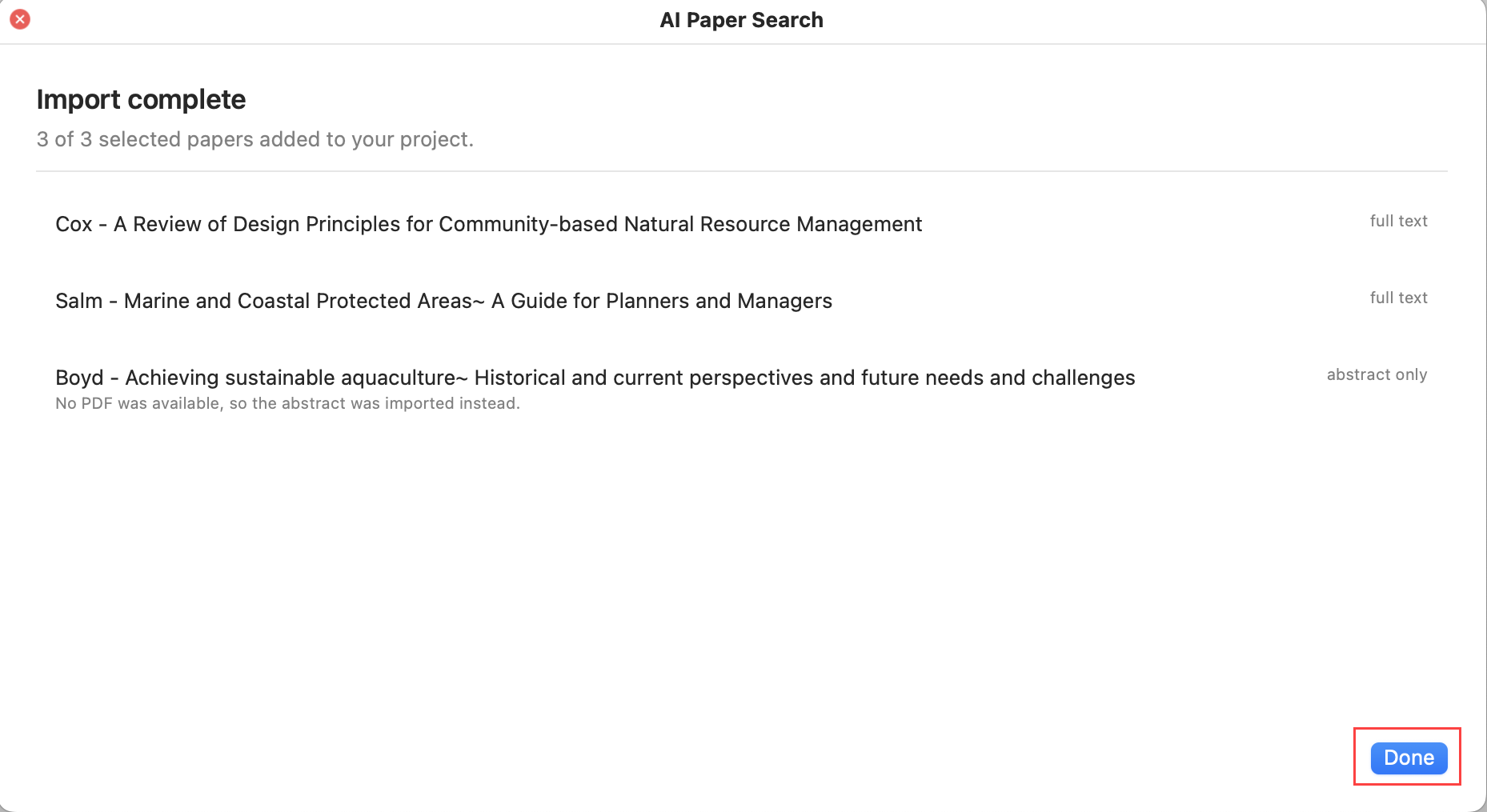
This imports every paper you have selected. When a PDF is available, the imported file holds the paper's full text; otherwise, if only abstract is available, a new document is created with the abstract. You can access all your imported files under Data - > Files - > AI Imported Papers.
NOTE An empty document is created when neither a PDF nor an abstract is available.
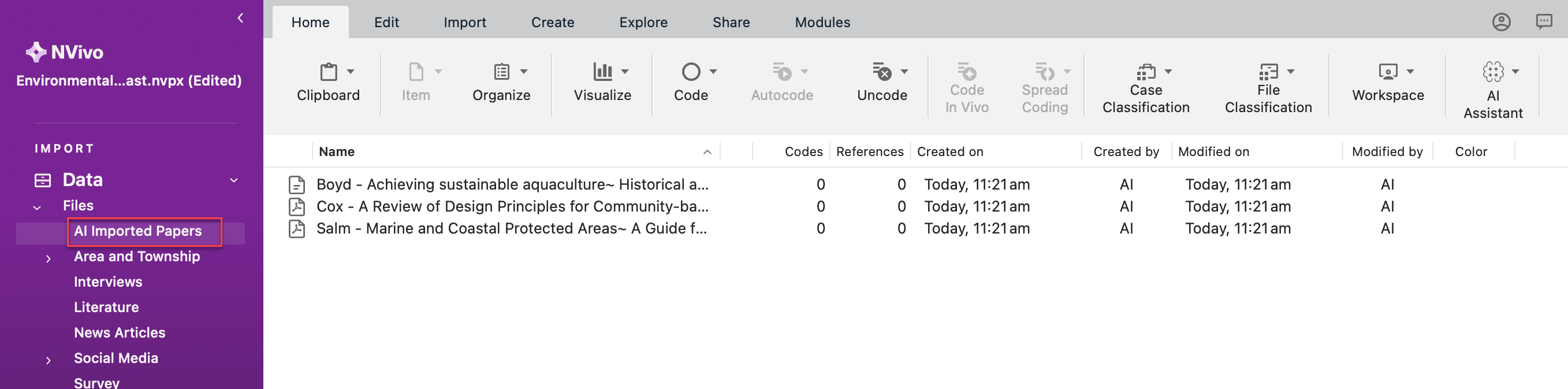
Imported Reference
Each imported file is classified with the Imported Reference file classification, whose attributes capture the paper's title, authors, year, journal, DOI, links, relevance score and explanation, match confidence, sources, and citation count. The imported files, and anything created for them, are recorded against the AI user.